# Using the Chainguard Console
URL: https://chainguard-docs-preview-git-1016-404s.chainguard.app/platform/console/images-directory.md
Last Modified: October 8, 2026
Tags: Chainguard Containers
A walkthrough of the Chainguard Console.
This guide walks you through the Chainguard Console. Anyone can use the Console, but you first need to [create an account and log in](https://console.chainguard.dev/auth/login).
If you're not ready to create a Chainguard account, you can follow along with the public [Chainguard Directory](/chainguard/containers/registry/chainguard-directory/). It offers similar information, but it isn't connected to an organization or account. The Directory's **Sign in** button opens the Console.
## Accessing the Chainguard Console
Log in to access the [Chainguard Console](https://console.chainguard.dev/auth/login).
To open the Console with your organization already selected, use (and bookmark) a link like this one, replacing `ORGANIZATION` with your organization's name:
```URL
https://console.chainguard.dev/auth/login?org=ORGANIZATION
```
## Browse Chainguard Libraries in the Console
To learn about browsing Chainguard Libraries in the Console, refer to the [Libraries browsing page](/chainguard/libraries/introduction/browse/).
## Browse container images and details in the Console
When you sign in to the [Chainguard Console](https://console.chainguard.dev), it opens to the **Overview** page:
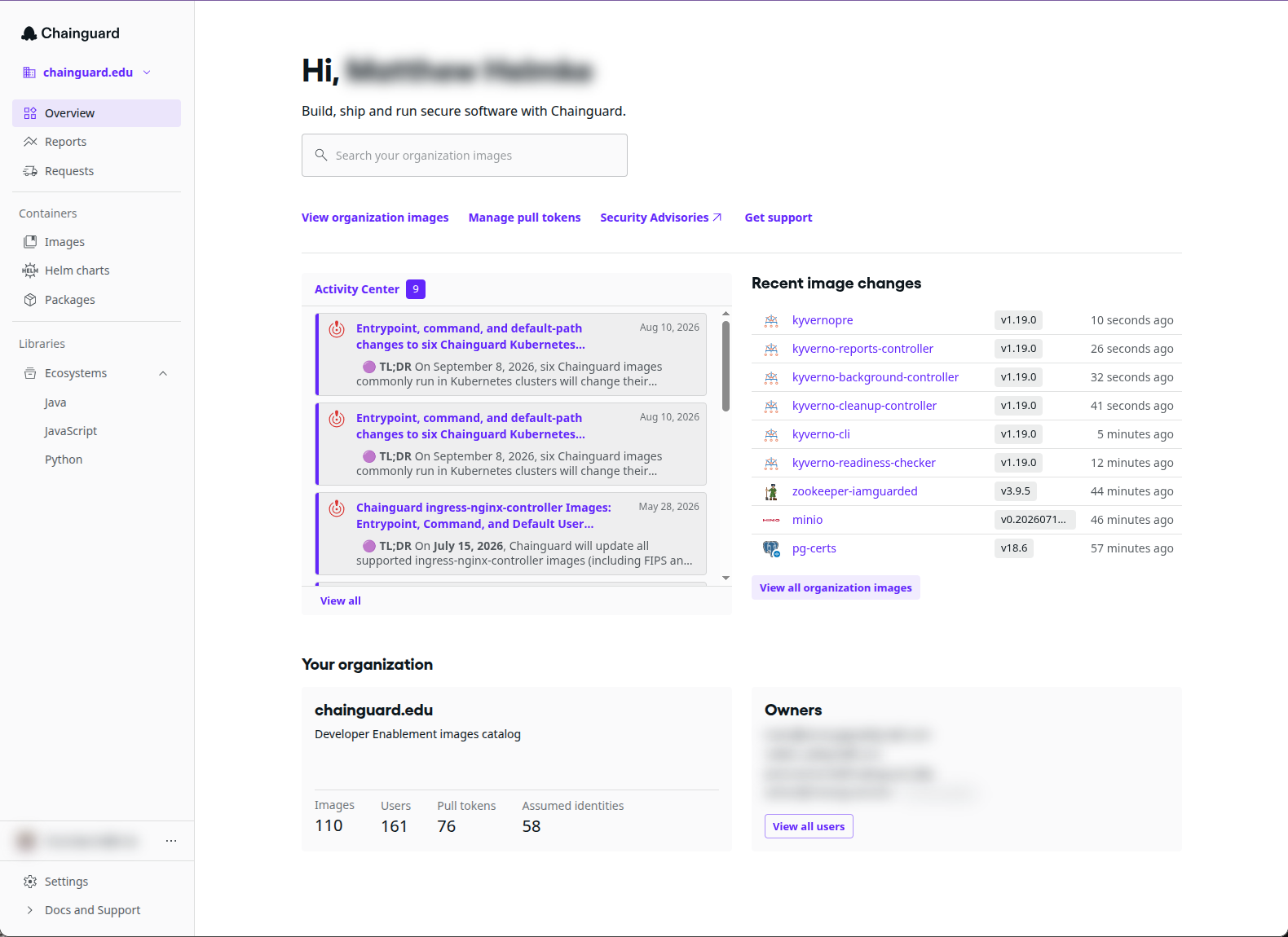
If your organization and account have [Chainguard Notifications](/platform/console/use-chainguard-notifications/) enabled, this page also shows the **Activity Center**, where Chainguard posts occasional notifications.
Click **Images** in the left-hand navigation. The **Images** page opens to the **Organization** tab. If you're part of an organization, this tab lists the private Chainguard Containers (also called *Production Containers*) your organization can access.
Select the **Chainguard catalog** tab, which lists all of Chainguard's available images in a table with four columns:
* **Name**: the name of the container image
* **Latest tag**: the latest available version of the image
* **Description**: a brief description of the image
* **Updated**: how long ago the image was last updated
If you belong to an organization, this tab also has an unlabeled column with an **Add to org** button for each image. For images already in your organization, the button has a different icon and adds another instance of the image. Depending on your organization's plan, some images might show a different option instead, such as **Contact us**. With catalog pricing, **Add to org** lets you provision Chainguard Containers yourself, without contacting Chainguard. For more information, refer to [Chainguard container catalog pricing](/chainguard/containers/reference/pricing/).
If an image you need doesn't appear in your organization's catalog, or appears without the version you need, refer to [Troubleshoot container and version availability](/chainguard/containers/troubleshooting/container-version-troubleshooting/).
The **Organization** tab has no **Description** column, but it adds two others:
* **Status**: whether your organization has access to the image. **Active** means your organization can download and use the image. **Expired** means your organization had access in the past but doesn't anymore.
* **Pull URL**: the URL you use to pull the image, for example in a `docker pull` command.
Click a column name to sort the list by that column, in ascending or descending order.
Above the table, a search box finds images by name or latest version number. To its right, the **Filter by** menu filters the images by their [container image category](/chainguard/containers/concepts/container-categories/).
## Container image information
Click any container image to open its details page:
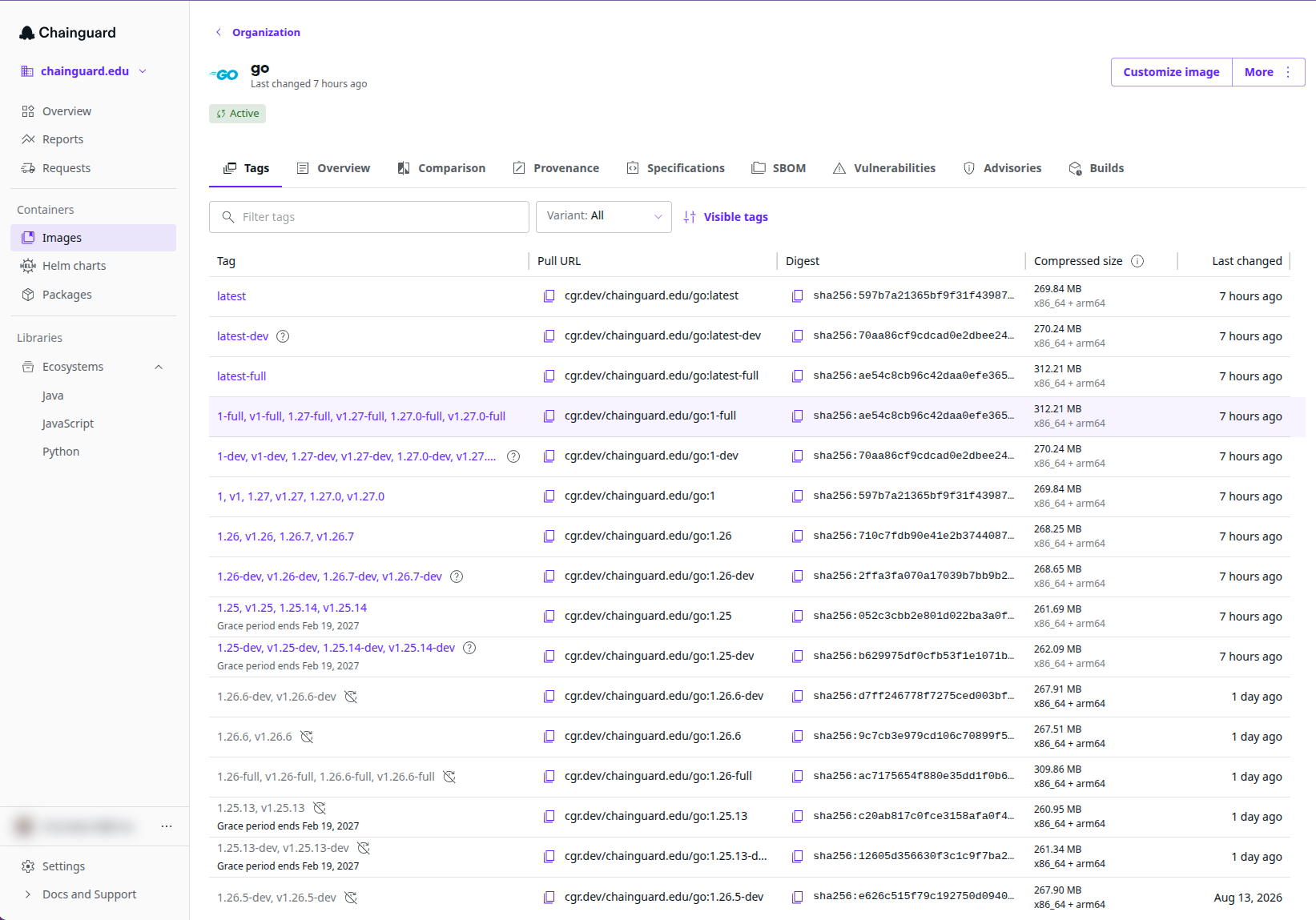
This example shows the details page for `go` in the Console.
Each image's details page has several tabs, each covering a different aspect of the image.
### Tags
Each image opens on the **Tags** tab, which lists the image's version tags in a table with these columns:
* **Tag**: each tag available for the image
* **Pull URL**: the URL you can use to download a version, shown when your organization can pull that version. When it can't, this column shows a status label in place of the URL: **Add to organization for access**, **Add image for access**, **Request image for access**, **Available in organization**, **Unavailable to organization**, or **Contact us for access**. These labels describe the repository rather than the version on that row, so **Available in organization** can appear beside a version you can't pull. For what each label means and what to do about it, refer to [Troubleshoot container and version availability](/chainguard/containers/troubleshooting/container-version-troubleshooting/).
* **Digest**: the digest of each version, shown when you're signed in to an organization
* **Compressed size**: the size of the image, in megabytes
* **Last changed**: when each version of the image was last updated
Above the table, a search box filters the image's versions. A **Variant** drop-down menu filters for all images, only development variants, or only non-development variants.
### Overview
The **Overview** tab contains the container image's README. READMEs typically explain how to download the image, note any compatibility issues, and describe how to get started with it.
### Comparison
The **Comparison** tab compares the CVE count of a Chainguard Container with a non-Chainguard alternative, with charts that visualize the comparison. For more information, refer to [CVE visualizations](/chainguard/containers/security-and-compliance/vulnerability-management/cve-visualizations/).
### Compliance
Container images in your organization also have a **Compliance** tab. It shows the image's Security Technical Implementation Guide (STIG) scan results, lets you download the scan report as an XCCDF XML file, and lists the NIST certificates for any FIPS-validated modules in the image. Results are available only for FIPS container images. You can choose which tag and architecture to review.
For more about the **Compliance** tab, refer to [Using the Compliance Dashboard in the Chainguard Console](/chainguard/containers/security-and-compliance/compliance-dashboard/).
### Provenance
All of Chainguard's container images contain verifiable signatures and high-quality [software bills of materials](https://www.chainguard.dev/supply-chain-security-101/what-is-an-sbom) (SBOMs). Signatures let you confirm each image's origin, and SBOMs list everything the image contains.
The **Provenance** tab explains how to verify container signatures and how to download and verify image attestations, with examples that use [`cosign`](/open-source/sigstore/cosign/an-introduction-to-cosign/).
### Specifications
The **Specifications** tab lists important details about the image, such as whether it ships with the `apk` package manager or a shell, its default user ID, its environment variables, and its entrypoint.
It also shows the image's **Raw configuration**, which includes many of these details plus the image's OCI labels (similar to [annotations](/chainguard/containers/overview/#annotations)).
### SBOM
The **SBOM** tab lists the packages in the image. Everything in a Chainguard Container is a package, so this list is a complete view of the image's contents.
The package table has six columns:
* **Type**: the type of package, such as `golang` or `apk`
* **Namespace**: the source repository the package is based on (Chainguard builds every package in its container images)
* **Name**: the name of each package included in the image's SBOM
* **Version**: the version of the listed package
* **Subpath**: if available, a subpath that points to a specific file or directory within the package
* **License**: the license under which each package is published
Above the table, a search box filters the package list. To its left, two drop-down menus select the image version and the architecture (x86_64 or arm64) whose SBOM you want.
To the right of the search box, the **Download** button downloads the SBOM in SPDX or CycloneDX format. It's available for Free Containers and for images your organization has access to.
Chainguard began generating SBOMs for its images on November 15, 2023, so image versions released before that date have no SBOM data.
### Vulnerabilities
The **Vulnerabilities** tab lists every CVE found in the image. Like the **SBOM** tab, it has a search box for filtering the list and, to its left, a drop-down menu for selecting an image version.
Most of Chainguard's container images show no vulnerabilities for the `latest` version. This isn't an error: Chainguard aims to remove vulnerabilities from images as soon as they arise. To check how the table appears when vulnerabilities are present, select different versions in the drop-down until you find one with a vulnerability.
The table has five columns:
* **CVE ID**: the official identifier of the vulnerability
* **Severity**: **Critical**, **High**, **Medium**, **Low**, or **Unknown**
* **Package**: the package that contains the vulnerability
* **Version**: the version of the package containing the vulnerability
* **Last detected**: the date and time when the vulnerability last appeared in a scan of the container image
Click the down-pointing chevron (**˅**) to the left of a row to expand it. The expanded row shows the **Package** name and **Version**, the package's **Fixed version**, a brief **Description** of the vulnerability, and one or more **References** where you can learn more.
As with SBOM data, Chainguard began generating vulnerability data for its images on November 15, 2023, so image versions released before that date have no vulnerability data.
### Advisories
The **Advisories** tab lists the CVEs that have affected the image and what action Chainguard took on each one. It shows a timeline of the image's security advisories, newest first. Each entry specifies the date and time the advisory was released, the CVE in question, the affected package, and the [current status](/chainguard/containers/security-and-compliance/security-advisories/how-chainguard-issues/#summary-of-advisory-statuses).
To learn more about Chainguard security advisories, read [How Chainguard issues Security Advisories](/chainguard/containers/security-and-compliance/security-advisories/how-chainguard-issues/) and [How to use Chainguard Security Advisories](/chainguard/containers/security-and-compliance/security-advisories/how-to-use/). You can also browse every advisory published for Chainguard Containers on the self-service [Security Advisories page](https://images.chainguard.dev/security?utm_source=cg-academy&utm_medium=referral&utm_campaign=dev-enablement&utm_content=edu-content-chainguard-chainguard-images-working-with-images-images-directory).
### Builds
In the Console, images also have a **Builds** tab, which lists recent builds of the image. The tab is available only for images with an **Active** status. It's especially useful for images customized with Chainguard's [Custom Assembly](/chainguard/containers/custom-assembly/overview/) tool.
For more about the **Builds** tab and working with Custom Assembly in the Console, refer to [Using the Chainguard Console to manage Custom Assembly resources](/chainguard/containers/custom-assembly/custom-assembly-console/).
### Find Helm charts in the Chainguard Console
For organizations that deploy Chainguard container images with Helm, Chainguard provides upstream-produced Helm charts and a set of Chainguard-created iamguarded charts, designed for organizations migrating off Bitnami.
To find these charts in the Console, click **Helm charts** in the sidebar menu. The iamguarded charts have an **iamguarded** label. Click a chart name to open its details.
### Find packages in the Chainguard Console
To find the packages available to your organization, click **Packages** in the sidebar menu. The **Packages** page lists the APK packages in your organization's private Chainguard APK repository, and you can search the list.
Use the **Architecture** drop-down above the list to filter packages by architecture. Click a package to open its details in a side panel, and use the panel's **Version** drop-down to switch between versions.
## Learn more
The Chainguard Console helps you find which Chainguard container images are available and learn details about each one. To work with an individual image, check whether a [getting started guide](/chainguard/containers/getting-started/) exists for it. You can also learn [how to use Security Advisories](/chainguard/containers/security-and-compliance/security-advisories/how-to-use/) on the [self-service public Security Advisories page](https://images.chainguard.dev/security?utm_source=cg-academy&utm_medium=referral&utm_campaign=dev-enablement&utm_content=edu-content-chainguard-chainguard-images-working-with-images-images-directory).